Step 1: Upload Your Image
Start by clicking the upload area or simply drag and drop an image file (like PNG or JPG) from your device. The tool will instantly load your chosen image.
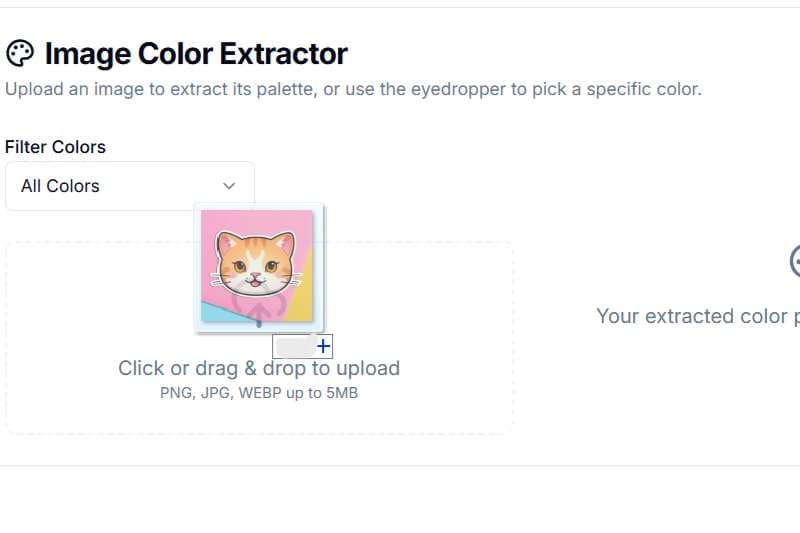
Click or drag & drop to upload
PNG, JPG, WEBP up to 5MB
Your extracted color palette will appear here.
A step-by-step guide to extracting color palettes from your images.
Start by clicking the upload area or simply drag and drop an image file (like PNG or JPG) from your device. The tool will instantly load your chosen image.

You can choose to focus on 'Light Colors' or 'Dark Colors' using the filter dropdown. This helps you get the exact color mood you're looking for.
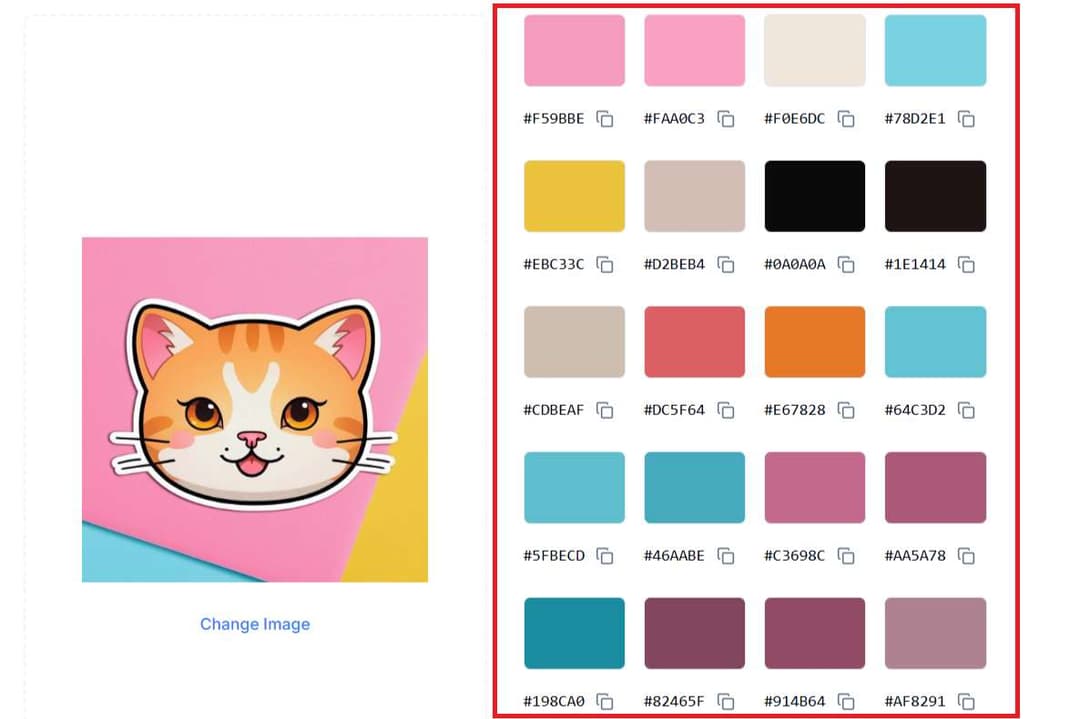
Once the image is processed, our smart algorithm will automatically extract a diverse and dominant color palette. These colors will appear to the right, ready for you to use.
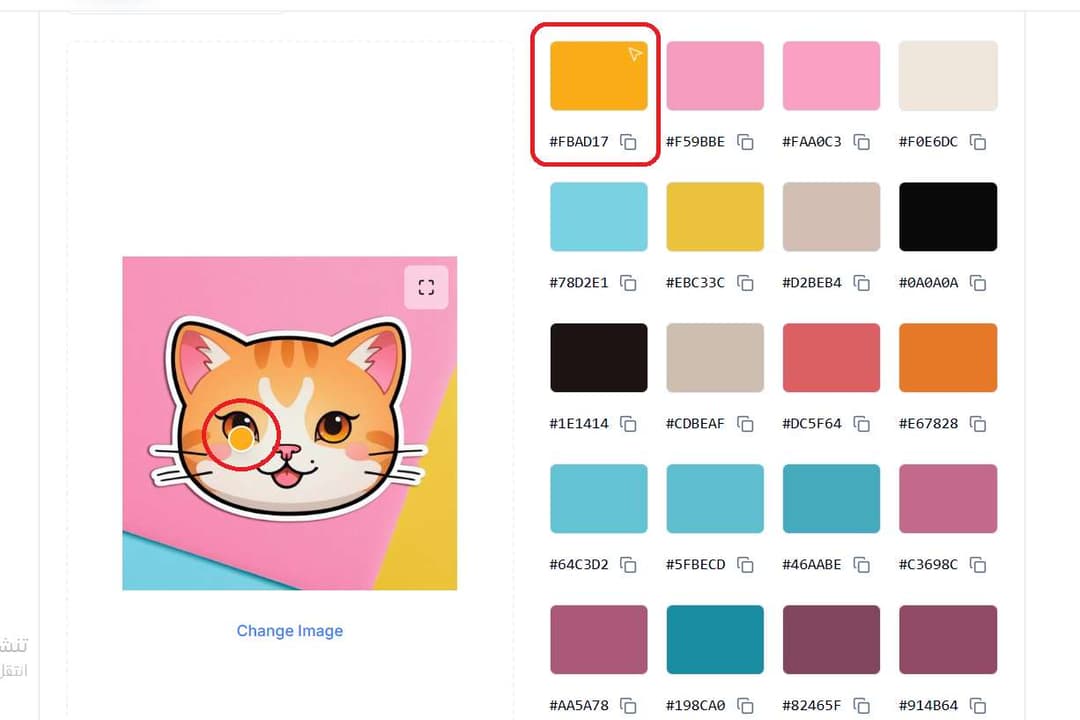
For a specific color, just move your mouse over the image. An eyedropper tool will appear, letting you preview the exact color. Click to select it and add it to your palette.
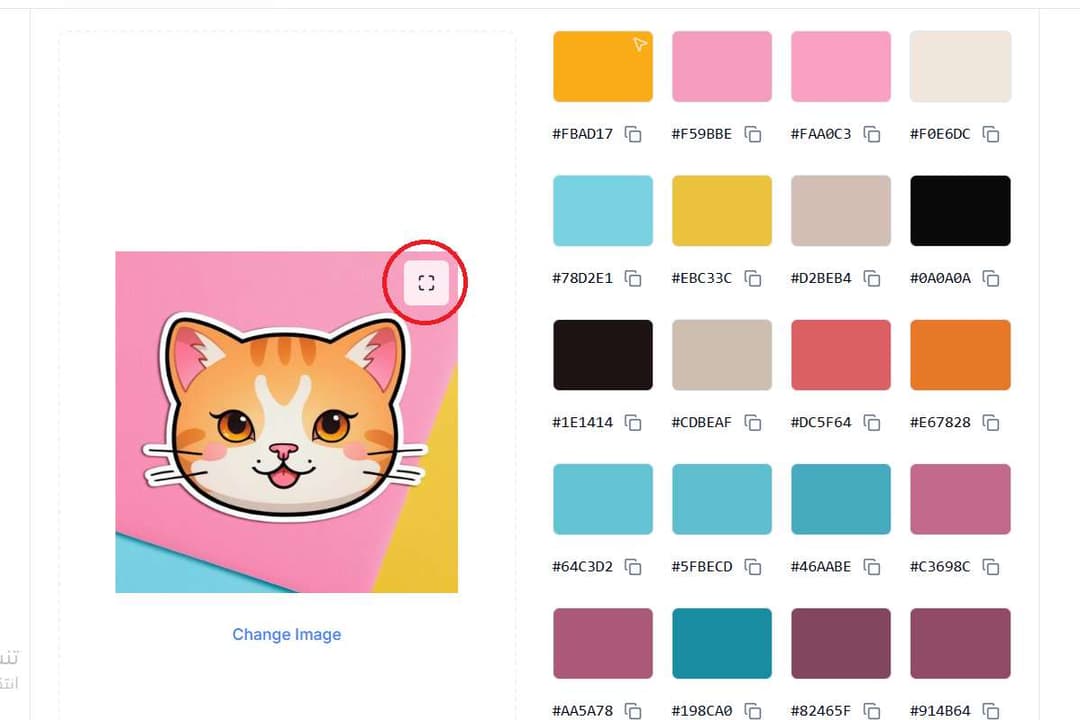
Need more accuracy? Use the maximize button to view the image in fullscreen mode. The eyedropper remains active, making it easier to pick out those perfect shades.
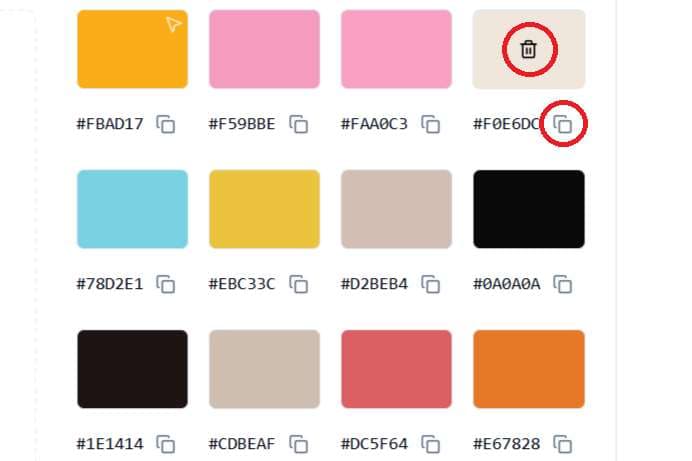
Take full control of your palette. Click the copy icon next to a color's code to copy it. If you want to remove a color, hover over it and click the trash icon that appears.